Customizers · Troubleshooting
Thingiverse Customizer Alternatives: Fixes and 2 Free Options
Thingiverse Customizer showing a black screen or a 500 error? Open the same .scad file in OpenSCAD Playground or on MakerWorld, and fix what breaks.
Quick comparison
| Generator | Best for | Price | Account | Exports | Multicolor | Link |
|---|---|---|---|---|---|---|
| 01 OpenSCAD Playground | Customizing .scad files without installing OpenSCAD | Free Free and open source | Not needed | STL, 3MF, GLB, SVG | Yes | Open OpenSCAD Playground |
| 02 MakerWorld Parametric Model Maker | Personalising community models | Free Free with a MakerWorld account | Needed | 3MF | Yes | Open MakerWorld Parametric Model Maker |
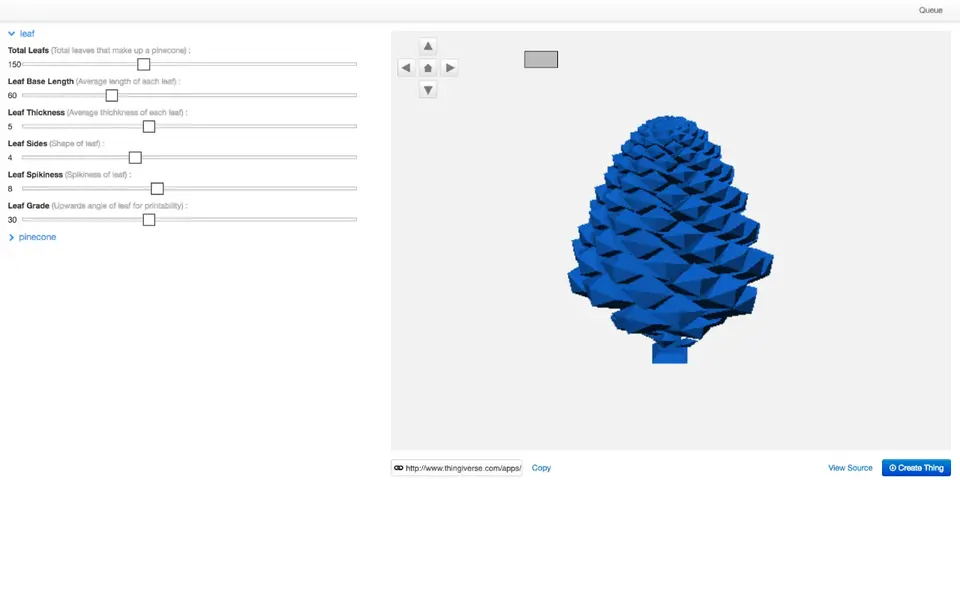
| 03 Thingiverse Customizer | Classic OpenSCAD designs on Thingiverse | Free Free with a Thingiverse account | Needed | STL | No | Open Thingiverse Customizer |
If the Thingiverse Customizer shows a black screen, a 500 error or a render that never finishes, you don’t have to wait for it. A Thingiverse customizer is an ordinary OpenSCAD (.scad) file with its settings written as comments, so the same file opens in other customizers. This guide covers two browser options, what to change when a file uses Thingiverse-only extras, and the desktop fallback.
Status on September 25, 2026: Thingiverse’s Customizer page says it is “working on a brand-new Customizer experience”, with no date. We opened the Customize link on two Things featured there, the UnLimbited Arm and enif’s flexing battery holders, without logging in. Both returned a black page with a 500 Internal Server Error. We did not log in, so we can’t say whether signed-in users see the same thing.
The steps below come from each tool’s documentation and from what their pages showed that day. We have not yet printed a customized Thingiverse file with them (how we check listings).
Quick answer
- No account, nothing to install: OpenSCAD Playground. Paste the .scad file, click Customize, render, and download an STL or 3MF.
- The design is on MakerWorld, or you slice in Bambu Studio: the MakerWorld Parametric Model Maker. It needs a free account and gives you a 3MF.
- The file uses Write.scad, build_plate or another Thingiverse-only library: make the small edit described below, or use desktop OpenSCAD with its own Customizer panel.
Every customizer platform we list is on the online 3D model customizers page.
Is the Thingiverse Customizer down?
It is not shut down, but it is unreliable, and has been for years. Thing pages still show a Customize button, and the Customizer page announces a new version. In our check, the Customize links returned a server error, and guides to running Customizer files on your own computer go back to at least 2021. Our Thingiverse Customizer listing has the background.
The model itself is not locked inside the Customizer. The .scad file sits on the Thing’s Files tab, and MakerBot’s Customizer rules required every customizer to keep all its code in that one file. That makes these designs easier to move than multi-file OpenSCAD projects.
Open a Thingiverse .scad in OpenSCAD Playground
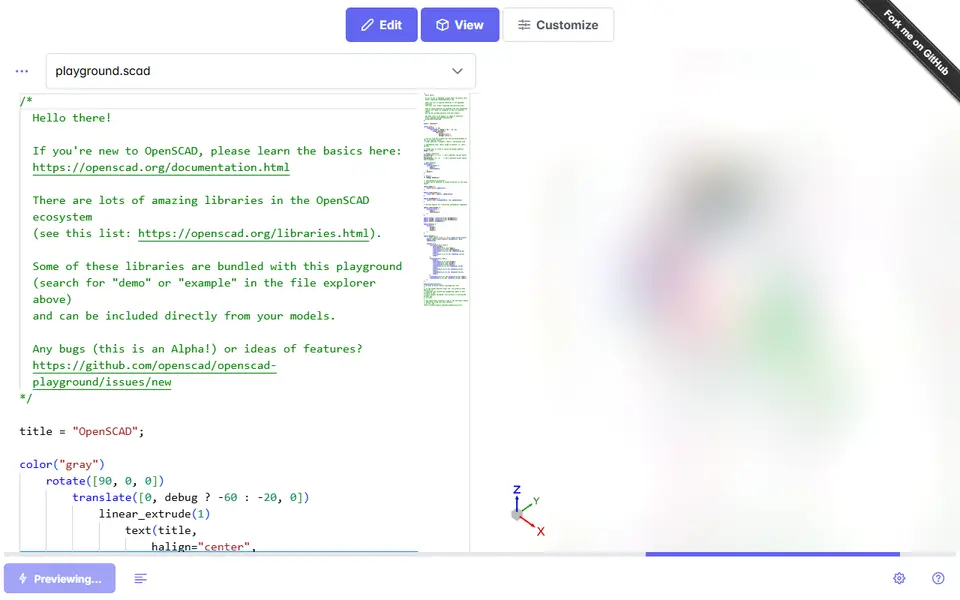
OpenSCAD Playground is OpenSCAD compiled to run inside a web page, maintained under the official OpenSCAD GitHub organization. It is free, open source and needs no account.
- Get the .scad file. On the Thing page, open the Files tab and download the file that ends in .scad. A Thing without a .scad file can’t be customized this way.
- Copy the code. Open the file in a plain text editor such as Notepad or TextEdit, select everything and copy it.
- Paste it into the playground. Open OpenSCAD Playground in a wide browser window, click in the code editor on the left, select all (Ctrl+A or Cmd+A) and paste over the demo code.
- Click Customize. It is the third button at the top, after Edit and View, and it only appears once the playground has found settings in the file. The settings the designer exposed appear as text fields, checkboxes and sliders, read from the same comments Thingiverse used (OpenSCAD’s Customizer syntax covers dropdowns, sliders, tabs and hidden values).
- Render and download. Click Render at the bottom left and wait. The button then changes to Download STL, and the arrow next to it also offers 3MF, GLB and OFF.
Everything runs on your own computer, so a large model can take a while on a slow laptop. According to the README, you can install the playground as an app, and it should then work without an internet connection.
Use the MakerWorld Parametric Model Maker
The Parametric Model Maker is the engine behind the Customize button on MakerWorld. It is the better choice when the design, or a remix of it, is already on MakerWorld.
- Sign in. You need a free MakerWorld (Bambu Lab) account. Opening the Parametric Model Maker sent us straight to a login page.
- Find the model. Search MakerWorld for the design’s name. If the original or a remix has a Customize button, open it and click Customize.
- Change the values and check the preview.
- Download the 3MF and open it in your slicer. Bambu Lab’s v0.10.0 release notes say that models using its multi-plate feature can’t be downloaded as STL.
If the design is only on Thingiverse, Bambu Lab’s v1.1.0 release notes describe an Open SCAD File option under the Creator Portal menu. It loads a .scad file from your computer so creators can test it before uploading. We couldn’t check whether it lets you download a result without publishing, because the tool needs a login.
Does it cost credits? The Parametric Model Maker is not among the features that MakerWorld’s credit guide lists as costing credits; that list covers AI tools such as PrintU, Make My Statue and Image to 3D. When Bambu Lab added Fusion 360 models in 2025, it said that feature might use credits in the future.
Want to publish your version? The original license decides whether you may. MakerWorld’s upload guidelines treat reposting someone else’s work, marking a remix as Original, linking the wrong source page and ignoring ShareAlike or NoDerivatives terms as violations. Thingiverse shows the license on every Thing page.
What breaks when you move a Thingiverse file
Thingiverse’s Customizer had a few extras built in that other tools don’t have. If the first lines of the .scad file use one of them, that is the likely reason it fails elsewhere. This table compares what each tool documents; we have not yet run Thingiverse files through them.
| In the .scad file | Thingiverse | OpenSCAD Playground | MakerWorld | Desktop OpenSCAD |
|---|---|---|---|---|
use <utils/build_plate.scad> |
Built in | Not bundled | Not on its library list | Add it yourself |
use <write/Write.scad> and its DXF fonts |
Built in | Not bundled | Not on its library list | Add it yourself |
use <pins/pins.scad> |
Built in | Not bundled | Not on its library list | Add it yourself |
use <MCAD/...> |
Built in | Bundled | Not on its library list | Bundled |
text() with a named font |
All Google Fonts | Liberation and Noto fonts | 500+ Google Fonts | Liberation plus the fonts on your computer |
| Image upload or drawing canvas settings | Built in | Not documented | Own upload syntax (PNG, SVG, STL); canvas not documented | Text fields only (a file name or coordinates) |
Sources: MakerBot’s Customizer docs, the playground’s library list, MakerWorld’s library list, upload notes and font notes, the OpenSCAD manual on libraries, and dr-lex.be on desktop OpenSCAD.
How to fix the common ones:
- build_plate: MakerBot’s Build Plate library only shows a see-through build plate in the preview (it uses OpenSCAD’s
%modifier) and is not part of the printed object. Deleting theuse <utils/build_plate.scad>line and thebuild_plate(...)line should clear the error without changing the part. - Write.scad: in desktop OpenSCAD, recreate Thingiverse’s layout: a folder called
writenext to the .scad file, holding Write.scad and its .dxf font files. OpenSCAD looks for libraries in the file’s own folder first. In a browser tool, the alternative is to replacewrite()with OpenSCAD’s built-intext(), which takes a little code editing. - Missing fonts: if the file names a font the tool doesn’t have, change the font name to one it does. Liberation Sans ships with both the playground and desktop OpenSCAD.
- Image-based customizers, such as old Thingiverse lithophane makers: Thingiverse’s image upload setting does not carry over as written. MakerWorld accepts PNG uploads, but its v0.8.0 notes use a different setup (a variable set to “default.png”), so the file needs editing. dr-lex.be reports that in desktop OpenSCAD these come out 100 times too tall unless you change a scale value. For a photo, a dedicated lithophane generator is simpler.
- Too big for the plate on MakerWorld: 3MF generation fails when a model doesn’t fit on a build plate, according to the v0.10.0 notes.
Desktop fallback: OpenSCAD’s own Customizer panel
If a file fails in both browser tools, desktop OpenSCAD is the most complete option. It is free for Windows, macOS and Linux (downloads) and has had a Customizer panel since version 2019.05. We don’t list it as a generator because it is a code tool, but the panel lets you change settings without touching the code.
- Install OpenSCAD and open the .scad file.
- In the Window menu, untick Hide Customizer. The settings appear in their own panel.
- Change the values and press F5 to preview.
- Press F6 to render, then export an STL with File > Export.
- Save your settings as a preset, which OpenSCAD keeps as a JSON file, so you can make the same part again later.
Missing libraries go in the folder that File > Show Library Folder opens (OpenSCAD manual).
If you only wanted a name tag, box or gear, a dedicated generator can be quicker than repairing an old file: see our name keychain generators, box generators and gear and part generators. New to all this? Start with how to 3D print without CAD.
Frequently asked questions
Is the Thingiverse Customizer down?
It has not been shut down, but it is unreliable. On September 25, 2026 the Customizer page said a new Customizer is being built, and the Customize links we opened without logging in returned a 500 error. A customizable Thing still has its .scad file on its Files tab, so you can customize it in another tool.
Can I customize Thingiverse models without installing anything?
Yes. Paste the .scad file into OpenSCAD Playground, a free browser version of OpenSCAD, click Customize, render and download an STL or 3MF. It needs no account. Files that use Thingiverse's built-in Write.scad or build plate libraries need a small edit first.
Do Thingiverse customizer files work on MakerWorld?
They can, because both run OpenSCAD and read the same kind of parameter comments. MakerWorld does not list Thingiverse's Write.scad, build_plate or pins libraries, so files that use them need editing, and the 3MF will not generate if the model does not fit on a build plate. Publishing someone else's design there also has to follow its license.
What you'll need
Matte PLA that hides layer lines
Matte filament hides layer lines and cuts glare, so raised lettering on signs and nameplates stays readable from any angle and a drawer full of bins looks uniform.
- Bambu Lab PLA Matte (affiliate link) Wide color range with AMS-ready RFID, ideal for multi-color signs.
- Polymaker Panchroma Matte PLA (formerly PolyTerra) (affiliate link) The former PolyTerra line under a new name: soft matte look and good value for printing Gridfinity in bulk. In Europe? Buy from 3DJake (affiliate link)
- SUNLU Matte PLA (affiliate link) Low-cost matte option for large batches of bins and baseplates. In Europe? Buy from 3DJake (affiliate link)
PETG for functional and outdoor prints
PETG handles heat, sunlight and repeated flexing better than PLA, so Gridfinity bins in a hot garage or signs mounted outdoors keep their shape.
- Bambu Lab PETG Basic (affiliate link) Upgraded formula that Bambu says matches PLA Basic for strength while staying impact-tough; low price per spool in multi-roll bundles.
- Polymaker PETG (affiliate link) High-flow replacement for PolyLite PETG: strong, low-odor and quick to print. In Europe? Buy from 3DJake (affiliate link)
- Overture High Speed PETG (affiliate link) Good-value PETG in a large color range for functional parts in bulk.
Some of these are affiliate links: we may earn a small commission, at no extra cost to you. More about that
Every generator in this guide
Customizers
MakerWorld Parametric Model Maker
Customize button on thousands of MakerWorld models, powered by OpenSCAD and Fusion
Get the next guide in your inbox
Every two weeks: the newest no-CAD generators, one guide and a print tip. Free, no spam, unsubscribe any time.