Tinting Voxel
Free filament painting from a photo, pixel art or logo, mixing 4 to 16 of your filaments, as 3MF or STL, no account
Tinting Voxel is a free browser tool for color mixing experiments with measured filament values. Free, no account; images are processed on its server. Exports 3MF and STL. Last checked .
Opens tintingvoxel.com
What is Tinting Voxel?
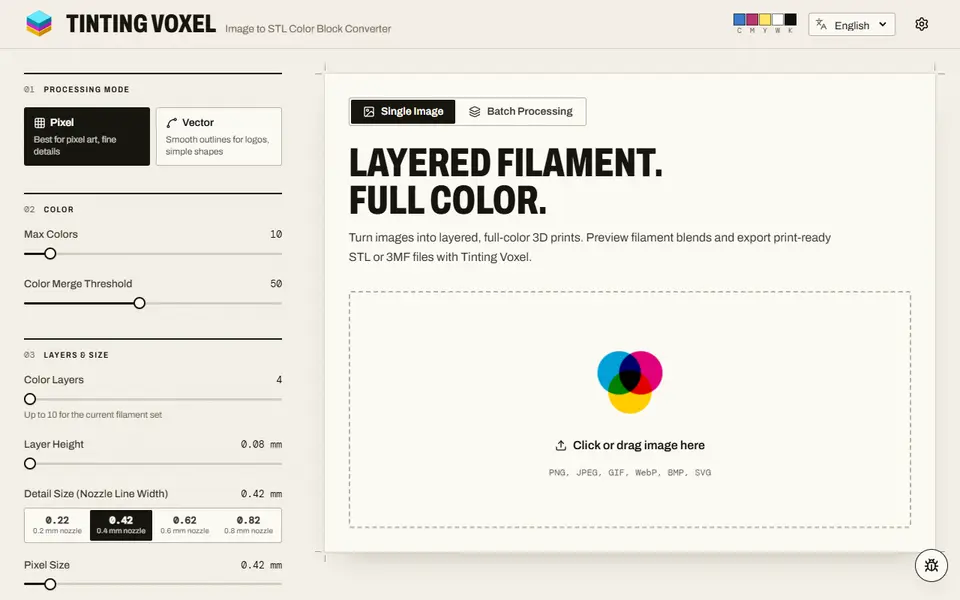
Tinting Voxel turns an image into a thin, full-color print made of stacked filament layers, in the same family as HueForge, Kromacut and ColorStack. The difference is how it mixes color: each filament gets a hex color and a transmission distance (TD), and the tool works out which stack of thin layers at each spot comes closest to the picture. It then shows the original, the grouped colors and a simulated print side by side, so you can judge the result before exporting.
You choose Pixel mode for pixel art and fine detail or Vector mode for logos, then set the number of colors, a merge threshold, the number of color layers, layer height (0.08 mm by default), your nozzle width and the backing layers and backing filament. It starts from four filament presets (Bambu CMYWK, Bambu CMYW, Clear CMYG, Clear CMYW) and you can add your own filaments up to 16. A Compare settings button tries other settings and ranks them by how close they get to the image, and a batch tab takes up to 20 images in one run.
Downloads are a 3MF with one named, colored part per filament, a ZIP of STLs, a CSV of the color data and a print-settings file. It is free with no account and no pricing page. Unlike most tools in this category it processes your image on its own server, so the picture does leave your device; we found no privacy or terms page. The code is open source under Apache-2.0. It suits people with an AMS or toolchanger who want to experiment with color mixing from measured filament values.
What you can make
- Full-color filament paintings from photos
- Multicolor pixel art panels
- Color logo panels from stacked layers
- Batches of up to 20 images
How to use Tinting Voxel
- Upload an image and pick Pixel or Vector mode
- Choose a filament preset or enter your own colors and TD values
- Set colors, layers, layer height and backing, and check the simulated print
- Download the 3MF and open it in your slicer
What you'll need to print it
Filament and parts that suit what you make with Tinting Voxel.
Multicolor PLA
White PLA
Multicolor filament systems
Some of these are affiliate links: we may earn a small commission, at no extra cost to you. More about that
Tinting Voxel pros
- Mixes 4 to 16 of your own filaments using their color and TD values
- Original, grouped colors and simulated print shown side by side
- 3MF with one colored part per filament, free and without an account
Tinting Voxel cons
- Your image is uploaded to its server, and there is no privacy page
- Results depend on knowing your filaments' TD values
Rate Tinting Voxel
One rating per account. Signing in takes one email link, no password.
Reviews
Made with Tinting Voxel
Read next
Tinting Voxel alternatives
Image to STL and relief generators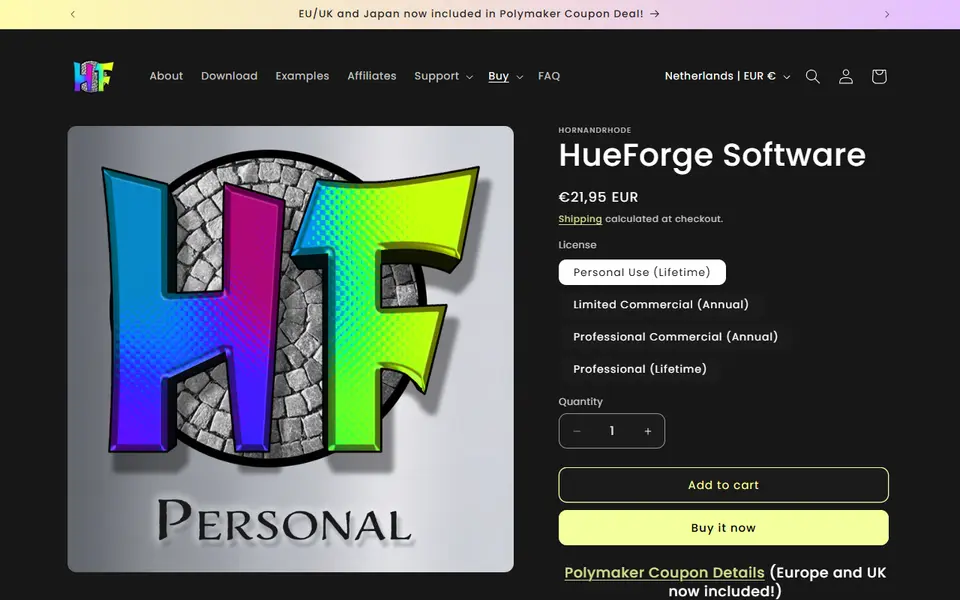
Image to Relief
HueForge
Desktop app that turns images into filament paintings using layered color swaps
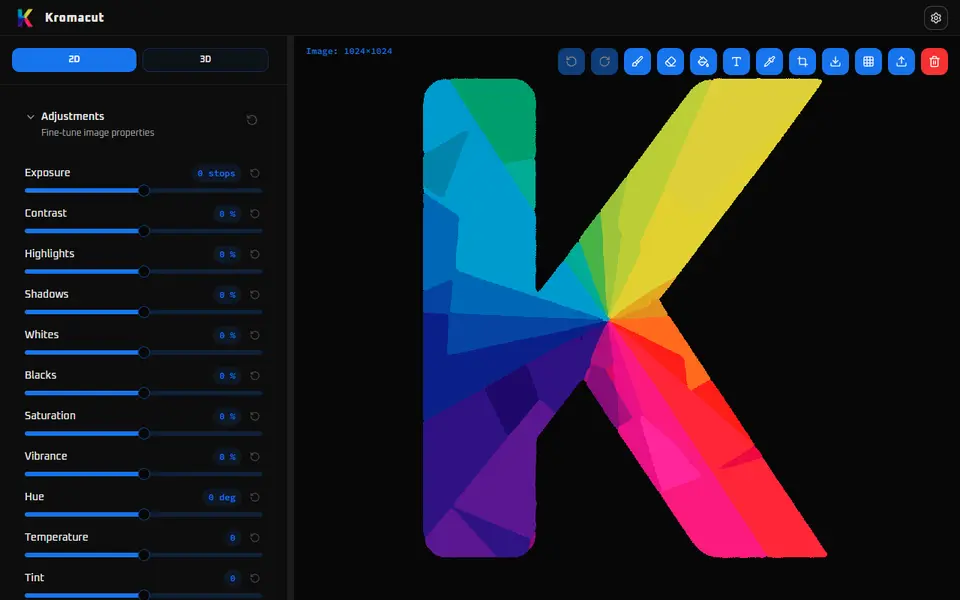
Image to Relief
Kromacut
Free open-source image to color-layer print tool with auto-paint and 3MF export
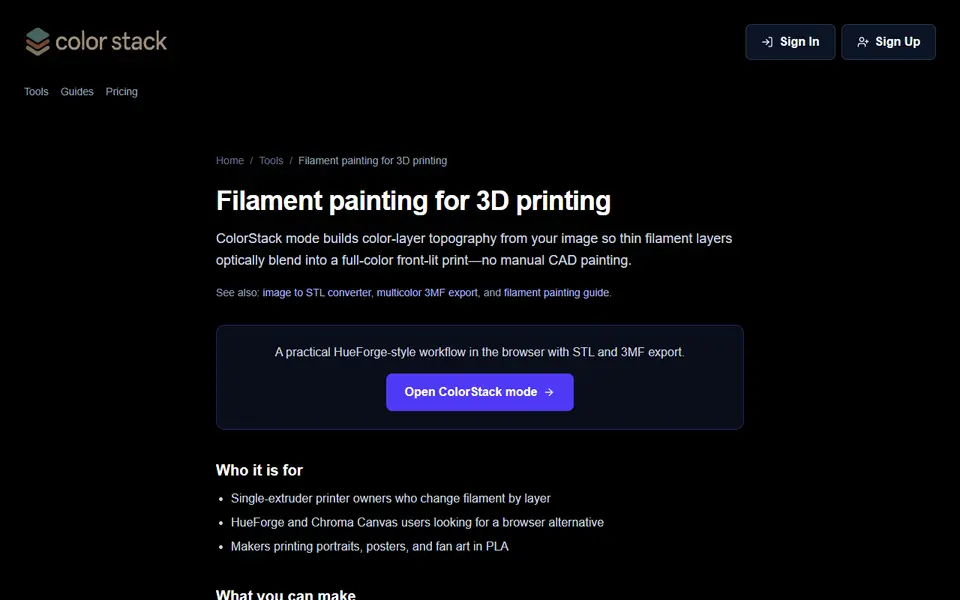
Image to Relief
ColorStack
Browser filament painting with 3MF export, plus flat multicolor and image to STL
Image to Relief
MakerLab Chroma Canvas
Bambu Lab's free browser tool for HueForge-style filament paintings from any image
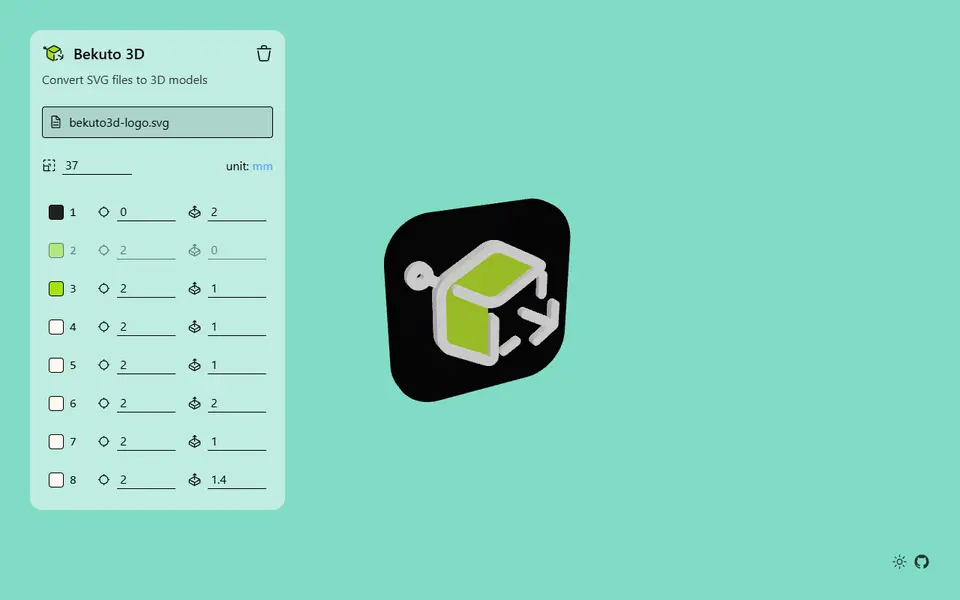
Image to Relief
Bekuto 3D
Turn SVG logos and simple images into layered, multi-color 3D models in your browser
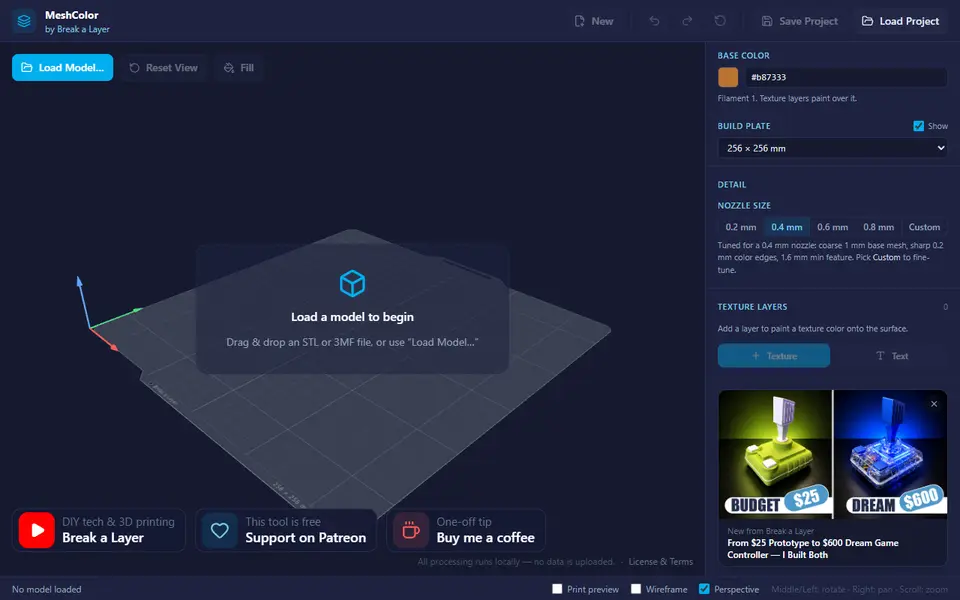
Image to Relief
MeshColor
Paints color textures, logos and text onto your own model and exports a multicolor 3MF