Image to Relief · Comparison
HueForge vs Chroma Canvas: Price, Licenses and Printers
HueForge vs MakerLab Chroma Canvas on documented features: price, desktop or browser, color control, AMS and printer needs, exports and selling rights.
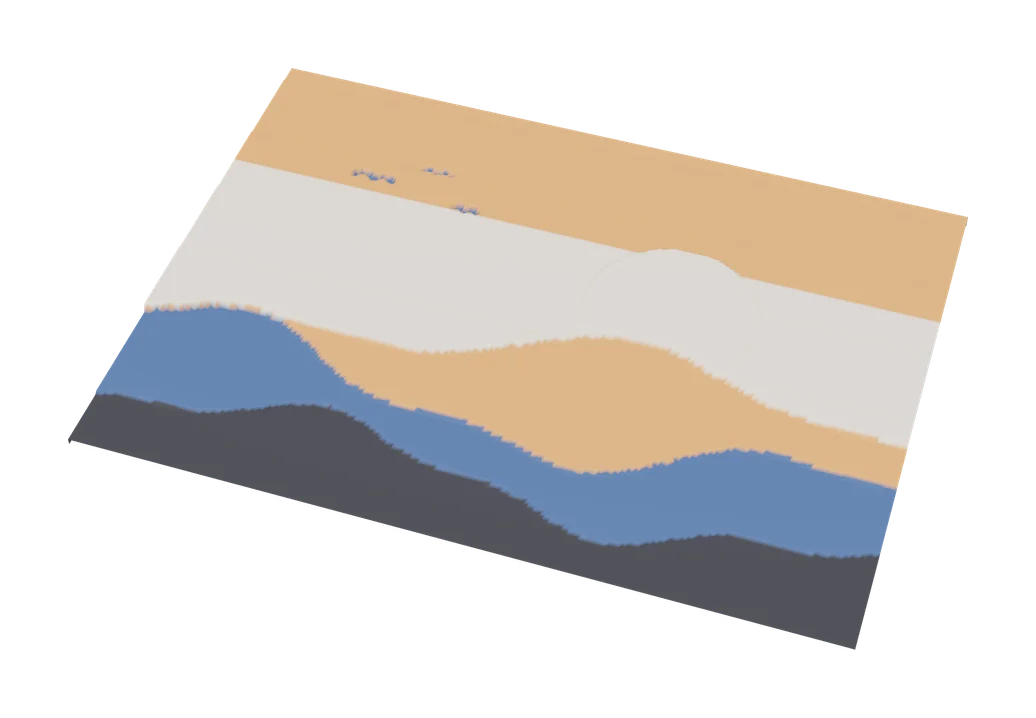
Quick comparison
| Generator | Best for | Price | Account | Exports | Multicolor | Link |
|---|---|---|---|---|---|---|
| 01 HueForge | Serious filament painting and wall art | Paid Personal Use lifetime $30 | Not needed | STL, 3MF | Yes | Open HueForge Affiliate link |
| 02 MakerLab Chroma Canvas | First filament paintings on a Bambu Lab printer | Free Free with a MakerWorld account | Needed | 3MF | Yes | Open MakerLab Chroma Canvas |
| 03 Kromacut | Advanced filament painting without paying | Free Free and open source | Not needed | STL, 3MF | Yes | Open Kromacut |
| 04 PrintPal Filament Painter | Trying HueForge-style photo prints for free | Free Free with no sign-up, watermark or usage limit | Not needed | OBJ, STL | Yes | Open PrintPal Filament Painter |
| 05 Filament Painter | Trying filament painting for free | Free Free for non-commercial use | Not needed | STL | Yes | Open Filament Painter |
| 06 ColorStack | Browser-based multicolor art prints | Freemium Free tier with STL export, up to 8 color layers and daily limits | Not needed | STL, 3MF | Yes | Open ColorStack |
| 07 Make My Lithophane (MakerLab) | Bambu Lab owners making color photo lithophanes | Free Free with a MakerWorld account | Needed | 3MF | Yes | Open Make My Lithophane (MakerLab) |
| 08 HueForge / Chroma Canvas Custom Frame Generator | Framing HueForge and Chroma Canvas prints | Free Free to customize and download with a MakerWorld account | Needed | STL, 3MF | No | Open HueForge / Chroma Canvas Custom Frame Generator |
HueForge is the better pick if you want full control over your filaments, print on any brand of printer, or plan to make a lot of filament art; it lists at $30 for a lifetime personal license. MakerLab Chroma Canvas is the better start if you own a Bambu Lab printer and want a filament painting from a photo in a few minutes, for free. If you want HueForge-style control without paying, Kromacut is free and open source.
This comparison is based on each tool’s documented features, prices and license terms as of September 26, 2026. SkipTheCAD has not printed with these tools.
Quick answer
- Best for control and any printer: HueForge. A desktop app for Windows, macOS and Linux with measured filament data, from $30 list for personal use.
- Best free start on a Bambu Lab printer: Chroma Canvas. Free in the browser with a MakerWorld account: you pick palettes like a photo filter and download a 3MF with the color changes set.
- Best free and open source: Kromacut. Runs in the browser or as a desktop app, can pick the filament order for you, and exports STL or 3MF.
- Free to sell prints: Chroma Canvas or Kromacut. MakerWorld puts no commercial limits on most MakerLab output and Kromacut’s terms add no fee for your own prints, while HueForge’s Personal license rules out selling.
Every tool in this space is on the image to relief generators page, and the other free options are in our HueForge alternatives guide.
HueForge vs Chroma Canvas vs Kromacut at a glance
| Feature | HueForge | Chroma Canvas | Kromacut |
|---|---|---|---|
| Price | $30 lifetime list for personal use; commercial from $75 a year | Free | Free, open source (AGPL-3.0) |
| Runs on | Windows, macOS, Linux | Browser, inside MakerWorld’s MakerLab | Browser, plus Windows, macOS and Linux builds |
| Account | No | Free MakerWorld account | No |
| Printer | Any FDM printer that can pause for a swap | Built for Bambu Lab printers | Any FDM printer |
| Color control | You pick filaments from a measured database, with a live preview of the blend | Palettes you pick like a photo filter; AI splits the image into 2 or 3 regions | Auto-paint picks the layer stack and filament order |
| Export | STL plus a text file of swap heights; 3MF with a $20 plugin | 3MF with the color changes set | STL or 3MF, plus a copyable swap plan |
| Selling prints | Needs a commercial license | Allowed | Allowed; its terms add no fee or non-commercial limit |
How much do HueForge and Chroma Canvas cost?
Chroma Canvas costs nothing: it is free with a MakerWorld account. HueForge is paid software with four licenses, and the HueForge shop lists them at:
- Personal Use: $30, one time. No selling of prints or models.
- Limited Commercial: $75 a year. You may sell prints, but not files.
- Professional Commercial: $150 a year. You may sell prints and digital files.
- Professional Lifetime: $500, one time.
When we checked on September 26, 2026, all four were on sale, at $24, $60, $120 and $350. The one-time licenses include two years of updates, and you can keep using the software after that without paying again. The shop says sales are final once the software is downloaded, so it is worth trying a free tool first. The optional 3MF Export Plugin, made by Additive Atom, costs another $20.
Desktop app or browser tool: what changes?
HueForge is a program you install on Windows 10 or 11, macOS 12 or later, or Linux. The shop warns that very old graphics chips will not run it: your graphics card needs OpenGL 3.3 support.
Chroma Canvas runs in the browser inside MakerLab, so there is nothing to install, but you sign in to MakerWorld and your projects stay in that account. One practical tip: in August and September 2026, users reported that the export download did nothing inside Bambu Studio’s built-in MakerWorld page, and worked in a normal web browser.
Kromacut sits in between. It runs in your browser with no account, and there are desktop builds for Windows, macOS and Linux.
Which one gives you more control over color?
HueForge gives you far more control. You choose your actual filaments from a database of hundreds of spools from brands such as Polymaker, Overture, Bambu Lab and Prusament, each with a measured Transmission Distance (TD): how much light passes through the filament at a given thickness. HueForge uses those values to predict the blend in a live preview, and tells you the layer for every swap. Several modes decide how the image maps to height, from plain brightness to color-aware modes. What it does not do is pick the colors for you; HueForge’s own overview says the creative choices are yours.
Chroma Canvas turns that around. You upload an image and try color palettes the way you would pick a filter in a phone app. Its standout feature is AI segmentation, which splits an image into two or three regions, such as subject and background, so each can get its own palette (Bambu Lab’s announcement). Helper tools crop the image, round the corners and punch a hole for bookmarks and charms. Early users in that thread noted it has no filament color matching like HueForge, and no lithophane mode.
Kromacut’s auto-paint mode is the closest free match to HueForge’s approach, and it goes one step further: you enter your filaments, and it searches for the layer stack and filament order that best fit the image. It rates each filament by a hiding distance, which it can measure from a small printed wedge.
For layered color lithophanes, HueForge has a backlit mode. On a Bambu Lab printer, the free Make My Lithophane in MakerLab also makes color lithophanes.
Do you need a Bambu Lab printer or an AMS?
Neither tool needs an AMS, but only HueForge is fully printer-neutral.
HueForge works with any FDM printer that can pause and let you swap filament, or swap it for you with an AMS, MMU or toolchanger. It exports a plain STL, so your slicer and printer brand do not matter.
Chroma Canvas is built for Bambu Lab printers. At export you choose a printer and nozzle and download a 3MF with the color changes already set, ready for Bambu Studio. On another brand, you can open a MakerLab 3MF in OrcaSlicer or PrusaSlicer, as our MakerLab guide explains, but check every color change height before you print.
An AMS saves you standing by the printer, but a filament painting changes color at a handful of set heights, so manual swaps are practical with both tools. If you are still choosing a printer, our Bambu Lab A1 vs A1 mini comparison covers the AMS lite.
What files do HueForge and Chroma Canvas export?
- HueForge: an STL plus a Describe.txt file with the layer swap instructions, which you enter in your slicer by hand. The $20 3MF Export Plugin writes a 3MF with the swaps already set for Bambu Studio, OrcaSlicer, PrusaSlicer, Creality Print, Elegoo Slicer and several others, and adds pauses when you have more colors than filament slots.
- Chroma Canvas: a 3MF with the color changes built in.
- Kromacut: an STL for manual swaps, or a 3MF that keeps each filament’s layers as a separate colored object, plus a plain-text swap plan you can copy (Kromacut’s export docs).
Can you sell prints made with HueForge or Chroma Canvas?
With Chroma Canvas, yes, at no cost. MakerWorld’s FAQ says works made with most MakerLab tools belong to you with no commercial restrictions. The only exceptions it names are the Parametric Model Maker and the third-party generators built into MakerLab, and Chroma Canvas is neither.
With HueForge, you need a paid commercial license. The Personal license does not allow selling prints or models; you may give prints away, and any model you share must carry a non-commercial license. Limited Commercial lets you sell prints but not files, and falls back to personal use if you do not renew. Professional adds selling files. The license terms also say a commercial license does not give you the rights to someone else’s intellectual property, and that holds for every tool here: a photo, character or logo you do not own stays off limits.
With Kromacut, yes, also at no cost. Its code is open source under AGPL-3.0, and its terms say you may use it for personal or commercial purposes and that they add no fee or non-commercial restriction to your own prints. Our guide to selling prints from generators covers licenses across every kind of tool.
How to choose in three steps
- Check your printer. On a Bambu Lab machine, start with Chroma Canvas. On any other brand, start with Kromacut or HueForge, which both export a plain STL.
- Make a first piece with four colors. Black, a dark color, a light color and white give enough tones to see whether you enjoy the technique.
- Buy HueForge when you hit a limit. Typical reasons are choosing exact filaments with measured data, a more accurate preview of the blend, or layered color lithophanes. If you then want to sell prints, pick a commercial license from the start.
Whichever tool you use, the HueForge / Chroma Canvas Custom Frame Generator sizes a press-fit frame to the width and height of your finished print.
Frequently asked questions
Can I print a Chroma Canvas file on a printer that is not a Bambu Lab?
Yes, but it takes more work. Chroma Canvas is built for Bambu Lab printers: at export you pick a Bambu Lab printer and nozzle, and you get a 3MF with the color changes set for Bambu Studio. On another brand, open that 3MF in OrcaSlicer or PrusaSlicer and check every color change height before you print. HueForge and Kromacut export a plain STL with a list of swap layers, so they suit other brands better.
Is HueForge worth paying for if Chroma Canvas is free?
It is if you want to pick exact filaments, see a preview based on their measured light transmission, make layered color lithophanes, or print on a printer that is not a Bambu Lab. If you own a Bambu Lab printer and want a quick picture from four spools, start with Chroma Canvas and buy HueForge when you hit its limits. HueForge sales are final once the software is downloaded, so trying the free tool first costs you nothing.
Can I use my own filament TD values?
In HueForge, yes. It ships with a database of hundreds of filaments with measured Transmission Distance (TD) values, and you can measure your own with the free Seashell Test or a TD1 device. Kromacut uses a related value called hiding distance, converts a TD you type in, and can calibrate a filament from a small printed wedge. Chroma Canvas is built around palettes, and early users on the Bambu Lab forum asked for a way to load their own filaments with TD values.
What you'll need
Multicolor PLA and color sets
Dual- and tri-color silks give a single-nozzle printer color shifts with no extra hardware, and a matched color set is what lets HueForge and color lithophanes blend thin layers into a full image.
- Bambu Lab PLA Silk Multi-Color (affiliate link) Co-extruded dual and tri colors that shift with the viewing angle; great for keychains and name tags.
- SUNLU Multi-Color Silk PLA (dual/tri/four-color) (affiliate link) Budget dual-, tri- and four-color silk for colorful prints without an AMS. In Europe? Buy from 3DJake (affiliate link)
- Bambu Lab PLA CMYK Lithophane Bundle (affiliate link) Four 1 kg spools (cyan, magenta, yellow, white) made for color lithophanes and handy for HueForge-style layering.
Matte PLA that hides layer lines
Matte filament hides layer lines and cuts glare, so raised lettering on signs and nameplates stays readable from any angle and a drawer full of bins looks uniform.
- Bambu Lab PLA Matte (affiliate link) Wide color range with AMS-ready RFID, ideal for multi-color signs.
- Polymaker Panchroma Matte PLA (formerly PolyTerra) (affiliate link) The former PolyTerra line under a new name: soft matte look and good value for printing Gridfinity in bulk. In Europe? Buy from 3DJake (affiliate link)
- SUNLU Matte PLA (affiliate link) Low-cost matte option for large batches of bins and baseplates. In Europe? Buy from 3DJake (affiliate link)
Multicolor filament systems
An automatic filament changer prints multi-color signs, keychains and HueForge pieces without you standing by to swap filament at every color layer.
- Bambu Lab AMS lite (affiliate link) Four-spool open unit for the A1 series; the cheapest way into Bambu multicolor.
- Bambu Lab AMS 2 Pro (affiliate link) Enclosed four-spool unit with built-in filament drying for Bambu's enclosed printers.
- Creality CFS (Creality Filament System) (affiliate link) Creality's multicolor unit for K2-series printers; expands to 16 colors with RFID and moisture-proof storage.
Some of these are affiliate links: we may earn a small commission, at no extra cost to you. More about that
Every generator in this guide
Image to Relief
HueForge
Desktop app that turns images into filament paintings using layered color swaps
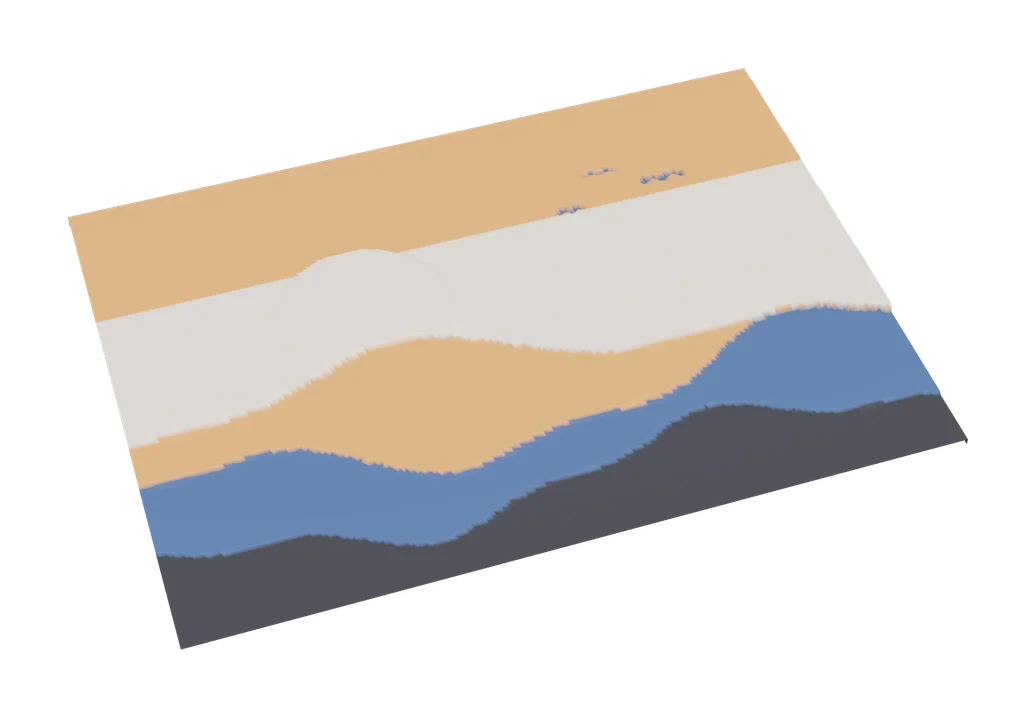
Image to Relief
MakerLab Chroma Canvas
Bambu Lab's free browser tool for HueForge-style filament paintings from any image
Image to Relief
Kromacut
Free open-source image to color-layer print tool with auto-paint and 3MF export
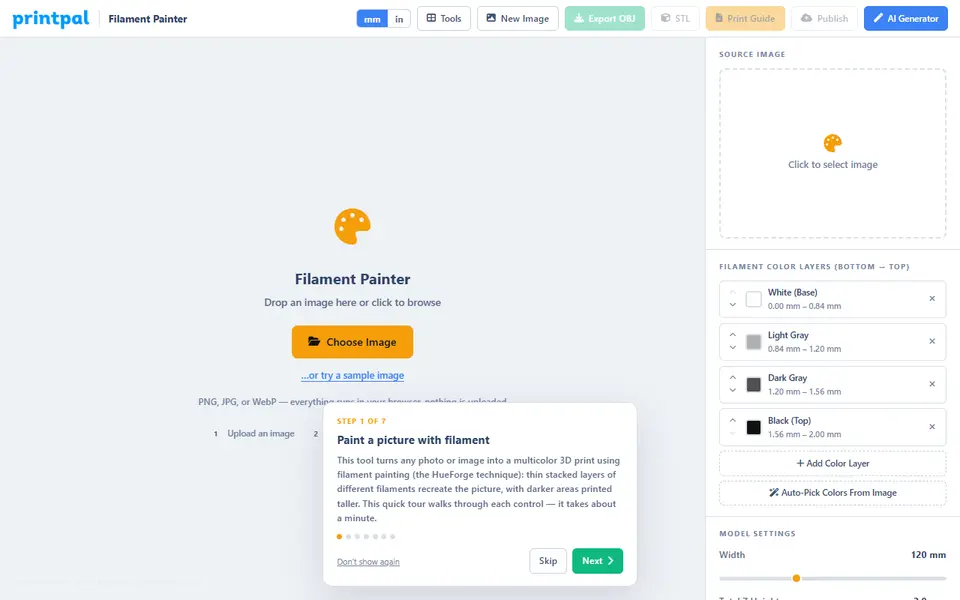
Image to Relief
PrintPal Filament Painter
Free browser filament painter that splits an image into up to 8 color layers, exported as OBJ or STL
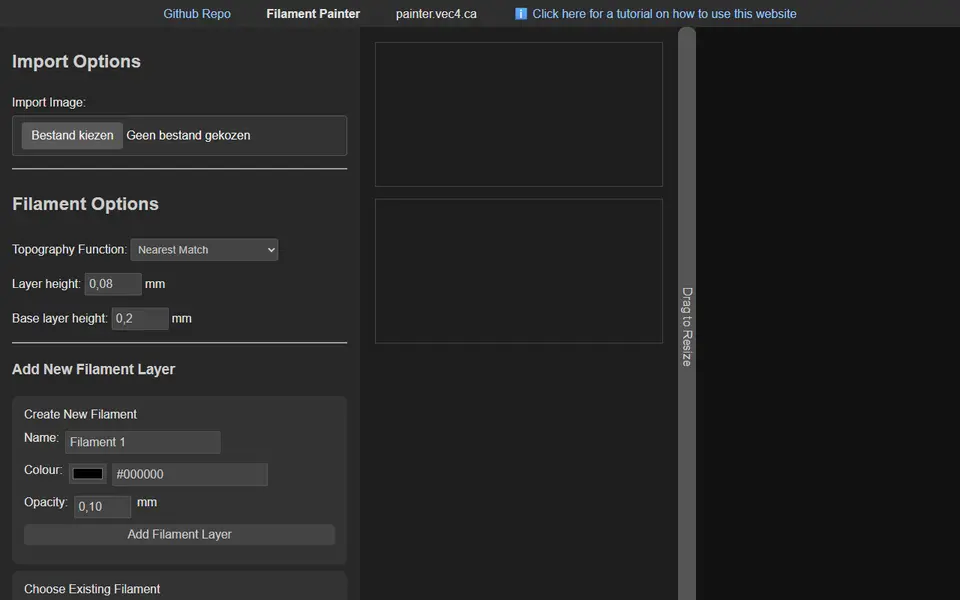
Image to Relief
Filament Painter
Free browser-based HueForge alternative for layered filament paintings
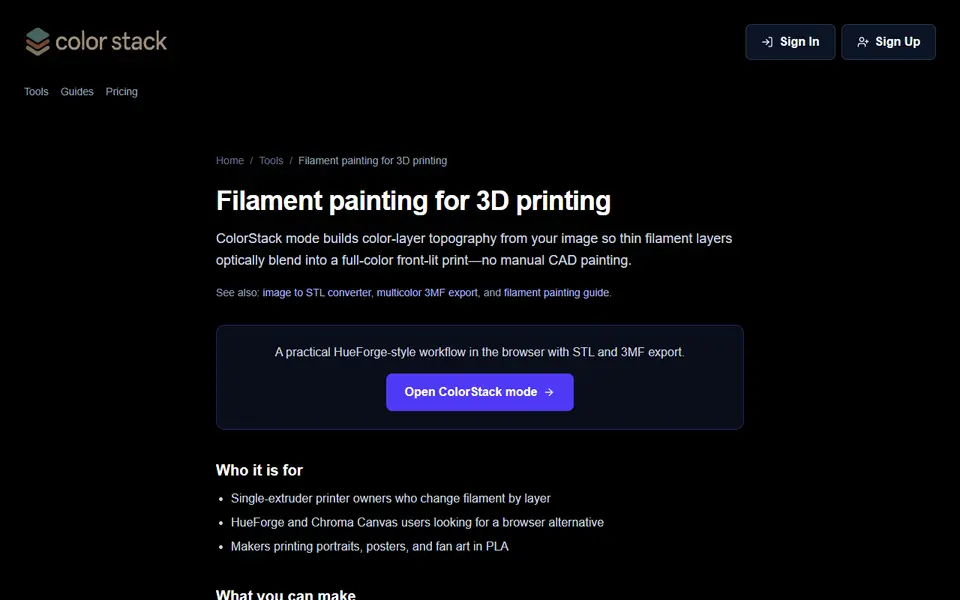
Image to Relief
ColorStack
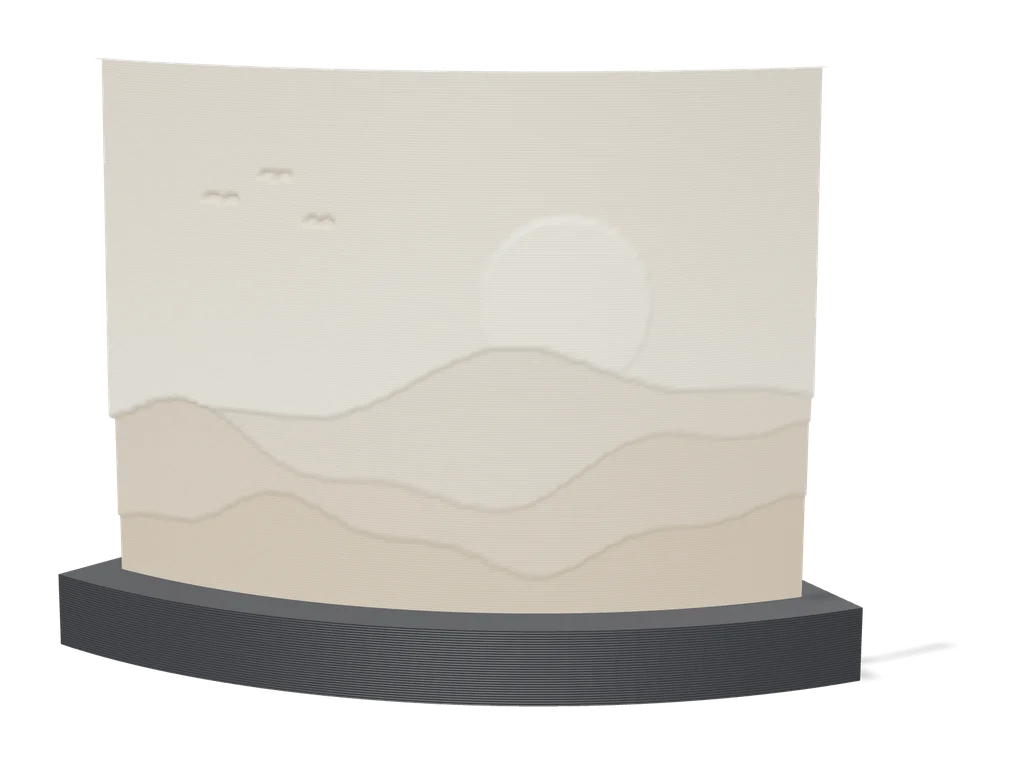
Browser filament painting with 3MF export, plus flat multicolor and image to STL
Lithophanes
Make My Lithophane (MakerLab)
Bambu Lab's free lithophane tool with mono and CMYK color modes and frames
Gifts
HueForge / Chroma Canvas Custom Frame Generator
Press-fit frames sized to your HueForge or Chroma Canvas print, with hooks and stands
Get the next guide in your inbox
Every two weeks: the newest no-CAD generators, one guide and a print tip. Free, no spam, unsubscribe any time.